
On this page
Get convenient billing resources and support
Managing your FedEx Freight Billing Online
How to dispute an invoice or charge
Get freight guidance and support
Get help that works for you
Get convenient billing resources and support
Receive, review, and pay your FedEx Freight invoices—all in a convenient online billing system. Once logged in to FedEx Freight Billing Online (FFBO), you can:
- Add users to your account, set up autopay, and more.
- Manage invoices: Download, print, pay, dispute, or request an adjustment.
- Opt in to email notifications.
- View your payment history and open invoices.
- Download reports.
Managing your FedEx Freight Billing Online (FFBO)
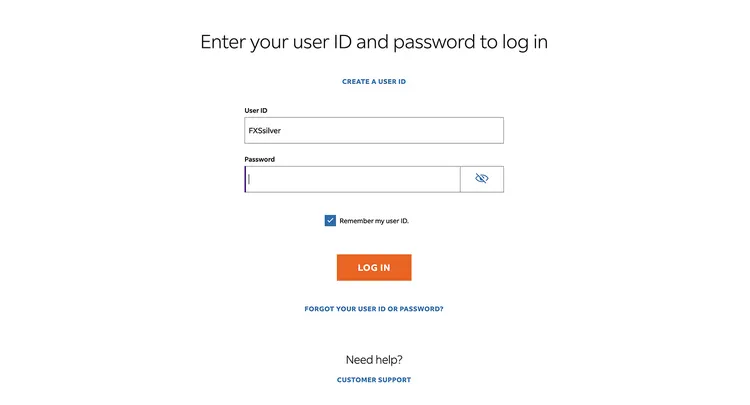
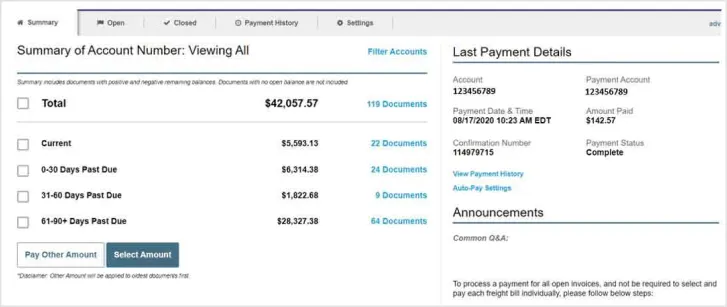
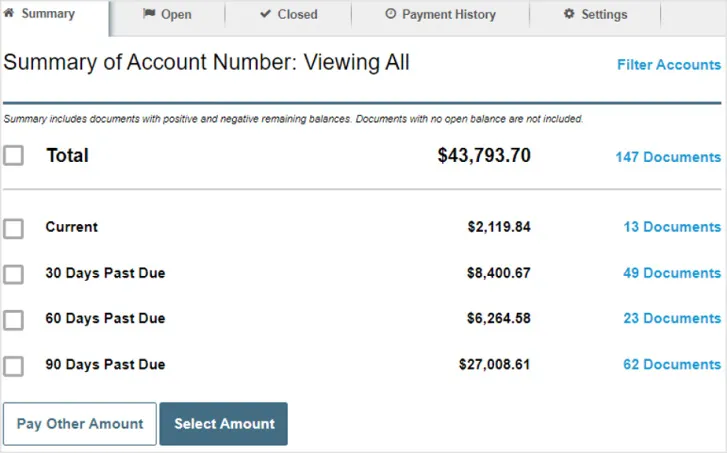
After you log in, you can handle a number of tasks from your account summary dashboard:
- View open invoices ready for payment
- View closed invoices
- View payment history
- Update account settings like payment methods and contact info
- Manage other billing options
- View announcements and FAQs
You can pay invoices directly from your account summary. Select invoices by due date or choose to pay the total.
After you log in, open the Settings tab and select Payment Settings from the left menu. Note that you won’t be able to see any info for accounts you haven’t linked.
From here, you can view, change, and add payment options like a bank account or credit card. Be sure to complete all required information fields and save your payment method.
FAQs
How do I change my banking information and enroll in automatic payments?
Within FFBO, go to the Settings screen and select the Payment Settings subtab. This screen will show all current payment profiles. Here, you can add a new bank account or credit card by selecting the button next to the desired type at the bottom of the Payment Accounts table. Change or remove any existing payment accounts by clicking Edit or Delete next to the account type.
You can also enroll in automatic payments on this page by selecting the Auto-Pay Settings tab. Select the maximum invoice amount to be automatically paid. And choose the account(s) to allow the automatic payment on. The payments will be automatically made on the invoice due date.
Does FedEx Freight have access to all of my FFBO service information?
The FFBO Support Group has access to all account information except your password.
What is Electronic Data Interchange (EDI)?
EDI is the electronic exchange of data using a standardized format. See the FedEx Freight Technology page for more information.



FAQs
How do I view all of my outstanding invoices?
From your dashboard, select the Open tab. You’ll be able to see a list of your open invoices with corresponding balances and the total amount due. This is where you can find the total dispute amount, if applicable.
How do I access invoice and supporting document details?
To view invoice-level details, click the PDF icon on the Open screen next to an invoice. A separate browser window will then open with the PDF of the invoice and all supporting details.
How can I print a copy of an original invoice?
Start by clicking the PDF icon on the Open screen next to the invoice. A new browser window will open a copy of your original invoice as a PDF, as well as any corrected invoices and supporting documents. Then you can print by selecting Print from the File menu.
How do I sort my invoices on the Account Summary screen?
Invoices can be sorted by any column heading under both the Open and Closed tabs. Just click the column header you’d like to sort by (e.g., Account Number, Invoice Date, Freight Bill #).
All columns can be sorted in ascending or descending order. And you can customize how you sort. For simplicity, click the column header of the information you wish to sort. The first click will sort the list by the values in ascending order. Click the same column header again to sort the list in descending order.
Is information regarding closed invoices always available?
Invoices and supporting document information are available for one year after the invoice date on the Closed screen.
How do I export invoice and payment details for my internal billing purposes?
Select the invoices or payments you’d like to download, then click Download. You’ll then be asked to select the file format. Enter any needed information. Click Download.
For invoices, you will immediately receive the download within your browser, which you can save. For payments, you’ll receive an email with the file. Note that this email will be sent to the email address assigned to the user ID.

FAQs
What kind of payment methods can I use in FFBO?
You can pay FedEx Freight invoices using an electronic funds transfer (EFT) or credit card. Add banking or credit card information by selecting Payment Settings on the Settings screen.
How do I pay my invoices through FFBO?
Pay FedEx Freight invoices by electronic funds transfer (EFT) or credit card.
- To find the list of invoices ready to be paid, select the Open tab.
- If you’d like to pay all invoices, choose the checkbox at the top of the table. Or select invoices individually.
- Click Pay Invoices.
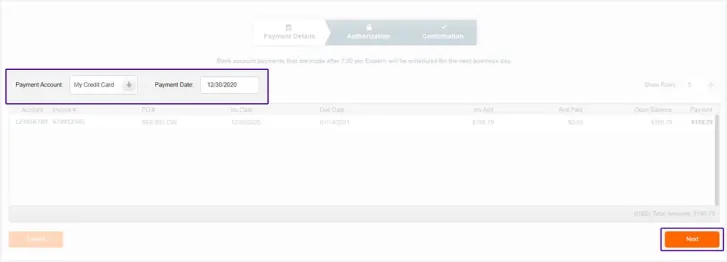
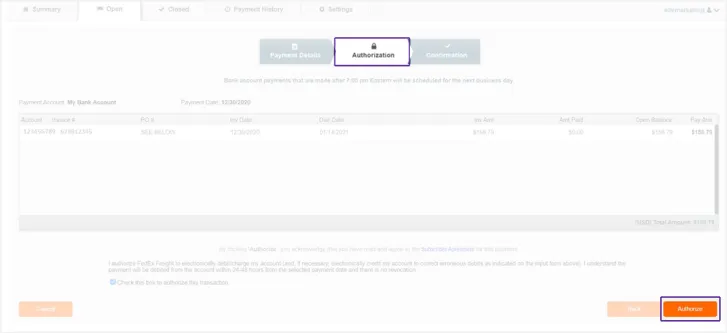
- You’ll see a summary of all the items selected for payment. Click Next to continue to Authorization.
- On the Authorization screen, review the total and invoices you’ve selected to pay. Click Authorize to complete.
- After submitting authorization of the payment, you’ll receive confirmation on the screen. And you’ll receive an email with the details.
Can FedEx Freight request an electronic funds transfer at any time?
FedEx Freight will only request a transfer of funds when you schedule or submit payment through FFBO.
How can I schedule a payment?
When you click Pay Invoices, you’ll reach the Payment Details screen. Here, you can review the selected items before submitting payment. You may schedule a payment for a future date by changing the Payment Date field to the desired scheduled pay date. Click Next to continue to authorization of the scheduled payment.
Do I get a receipt number for my payment?
Yes. Each time you schedule a payment, you’ll receive a confirmation number for your records. You can find the confirmation number in FFBO and a confirmation email (sent to the email address for the account).
How do I know that a payment has been submitted?
When a payment request is submitted, you’ll receive a confirmation number that identifies a specific payment. The status of your payment will be updated immediately by showing the amount paid in the Paid Online field next to the invoice(s) paid. The Amount Due field will change to $0.00. And the invoice(s) will move to the Closed tab once the payment has been applied.
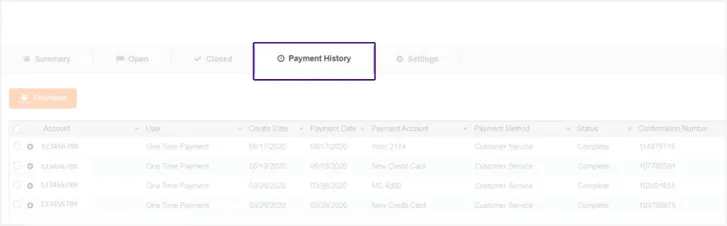
After you log in, select the Payment History tab to view your paid invoices.
You’ll be able to see a list of all FFBO payments and their status—including when a payment is scheduled, completed, or canceled. You can also find invoice confirmation numbers. To download paid invoices, select the relevant checkboxes and click Download.
FAQs
What do I need to access FFBO?
You need an active fedexfreight.com account to log in to FFBO. If you haven’t used FFBO before, you can register by entering your fedexfreight.com user ID and password. If you're new to fedexfreight.com and don't yet have a login, create a user ID.
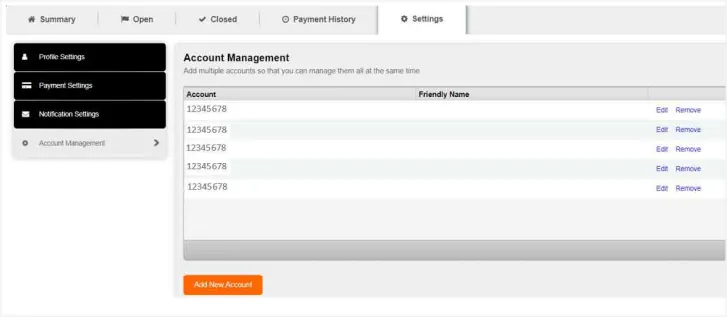
Please link any FedEx Freight bill-to account numbers when you log in for the first time. To do that, select Account Management from the Settings tab. To link a bill-to account, you’ll need an invoice number billed to the account within the last 6 months.
How do I tie my FedEx Freight accounts to my user ID?
To link accounts to your user ID for FFBO, you’ll need the account number and an invoice (open or closed) billed to that specific account number within the last 60 days.
Once logged in to FFBO:
- Select the Setting screen and the Account Management subtab.
- Click Add New Account at the bottom left of the table.
- Enter the account number and invoice billed to that account for verification.
- Click Save.
If successful, you’ll return to the Account Management screen, where you can see the account in the list of linked accounts. If unsuccessful, you’ll receive an error on the page and a message asking you to retry.
What if I have multiple accounts?
You can see information for the accounts you have linked within FFBO. Go to Account Management on the Settings tab. You can return to add or delete accounts. To manage invoices within multiple accounts you need to:
- Add each individual account manually.
- Provide an invoice tied to each account for authentication purposes (within the last six months).
How do I reset my FedEx Freight Billing Online password?
If you forgot your FedEx Freight Billing Online password, go to the Forgot/Reset your password or user ID link on the main login screen.
What if I don’t have login credentials?
If an account administrator has left the company and you can’t log in, we can help. Contact your FedEx Freight account rep to create a new account. If you don't have an account rep, contact FedEx Freight Customer Support at 1.866.FXF.4LTL. Note: We can’t provide you with the previous user’s information.
How to dispute an invoice or charge

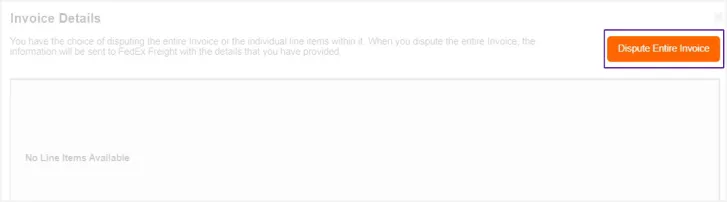
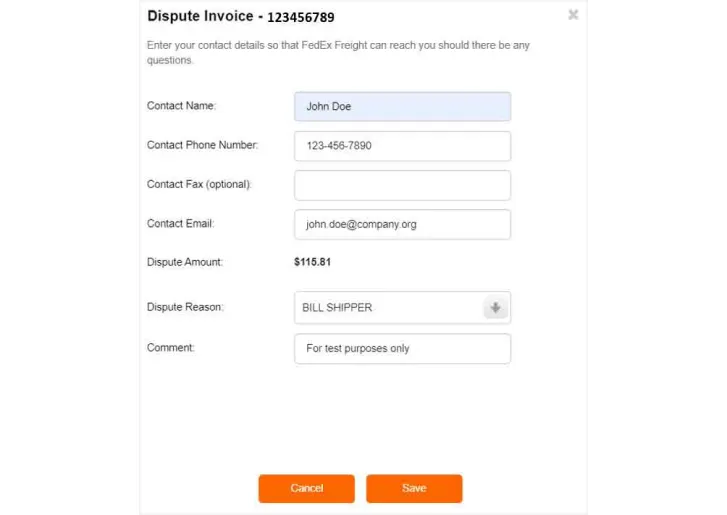
After selecting Dispute Entire Invoice, you’ll arrive at a dispute form. Complete the form. Then click Save.
Whether an invoice is open or closed, you have 180 days to dispute it or charges within it. FedEx Freight will get in touch with any questions. If the dispute is approved, the invoice amount due will reflect the credited amount.
FAQs
How do I inform FedEx Freight that I disagree with the billing information on an invoice?
If you’d like to dispute it prior to payment, click the notepad and magnifying glass icon (in the Detail column) next to the invoice. You’ll arrive at a dispute page, where you can select a reason for the dispute. Enter other required information. In the Comment section, add details for the FedEx Freight team to review.
How do I know which open invoices or shipments are in dispute?
If you’ve initiated a dispute on an invoice, the Dispute Total column will appear in the Open screen. You’ll see the amount of the dispute next to the disputed invoice.
Get freight guidance and support
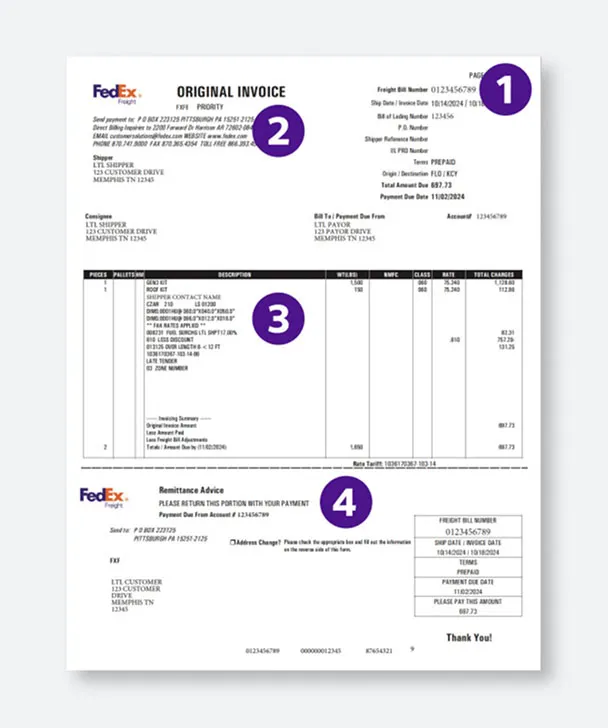
Understand your FedEx Freight invoice


Fill out this request form to get help with ACH or EFT payment setup.
Fill out this support form to get help with stamps or other non-technical needs.
Get help that works for you